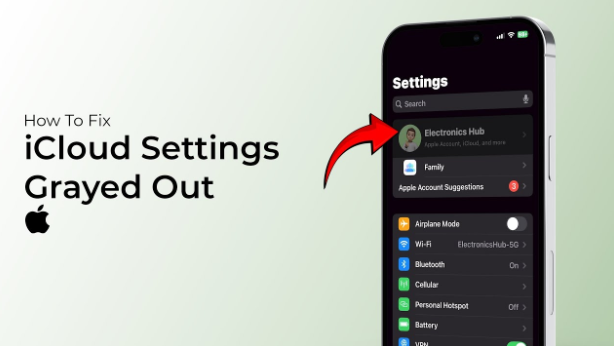
If you’ve ever opened your iPhone or Mac settings and noticed that My iCloud Greyed Out, you’re not alone. Many Apple users face this problem, which can make it hard to manage backups, photos, or account settings. This guide explains why your iCloud is greyed out and shows how to fix it quickly and safely.
When iCloud options are greyed out, it usually means there’s a restriction, connection, or configuration problem. Sometimes it’s due to screen time settings, device management profiles, or network issues. But don’t worry — you can easily solve this by following the right steps.
Understanding Why iCloud Is Greyed Out
iCloud settings become greyed out when your device restricts account access. Apple does this to protect data and ensure account security. If your device is managed by an organization, the profile might limit certain features.
Another common reason is a temporary glitch or a problem syncing with Apple’s servers. Restarting your device or checking your internet connection can sometimes resolve it instantly.
Check Internet and Apple Server Connection
A weak internet connection can interrupt communication between your device and iCloud. Always make sure Wi-Fi is stable and fast. Restart your router or switch networks to see if the settings reappear.
Additionally, if Apple’s servers are undergoing maintenance, iCloud options might appear greyed out temporarily. Waiting for a few minutes and refreshing the settings often helps.
Disable Screen Time Restrictions
Screen Time is one of the most common causes of this issue. If you’ve enabled content or privacy restrictions, certain iCloud options can be disabled.
- Go to Settings > Screen Time > Content & Privacy Restrictions.
- Turn off restrictions temporarily.
- Revisit the iCloud Settings menu.
After disabling Screen Time, you should be able to access all iCloud options normally.
Sign Out and Back Into iCloud
Sometimes, your iCloud session might have expired or become corrupted. Signing out and signing back in refreshes your connection with Apple’s servers.
- Open Settings > [Your Name] > Sign Out.
- Restart your device.
- Sign in again with your Apple ID.
Once you log back in, most greyed-out settings become accessible again.
Remove Device Management Profiles
If your iPhone, iPad, or Mac was issued by a school or company, a management profile may limit iCloud functions. These profiles restrict certain Apple ID features to protect organizational data.
You can check this by navigating to Settings > General > VPN & Device Management.
If you see a profile listed, that’s likely the reason for the restriction. Removing it (if allowed) restores full iCloud access.
Reset All Settings
When none of the above fixes work, resetting all settings can remove hidden conflicts. This won’t erase your data but will reset preferences to default.
- Go to Settings > General > Transfer or Reset iPhone.
- Choose Reset > Reset All Settings.
- Re-enter your Wi-Fi password and open iCloud again.
After resetting, iCloud options usually become active immediately.
Update Your Device Software
Running outdated software can cause compatibility issues between iCloud and your device. Always keep your system up to date.
To update:
- Navigate to Settings > General > Software Update.
- Download and install the latest iOS or macOS version.
- Restart your device.
After updating, open iCloud settings to check if the issue is resolved.
Check Apple ID Account Restrictions
If you’re part of Family Sharing, your family organizer might have placed limits on iCloud usage. Contact them to adjust permissions. Similarly, if there’s a billing issue or verification pending on your Apple ID, certain iCloud functions may be restricted.
Visit Settings > [Your Name] > Payment & Shipping and make sure all details are updated correctly.
Enable iCloud Through Mobile Data (Optional)
If you’re not connected to Wi-Fi, iCloud might not sync over mobile data. To enable:
- Go to Settings > Mobile Data.
- Scroll down to iCloud Drive and toggle it on.
This ensures iCloud can sync even when you’re away from Wi-Fi.
Restart Your Device in Safe Mode (Mac Only)
For Mac users, restarting in Safe Mode helps detect issues caused by third-party apps or extensions. Hold the Shift key during startup until you see the login screen. Then, check if iCloud preferences are still greyed out. If not, one of your apps might be causing the issue.
Prevent Future iCloud Greyed-Out Problems
To avoid this issue in the future, keep your Apple ID verified, maintain stable internet, and avoid installing unnecessary management profiles. Regularly updating your device software also keeps iCloud running smoothly.
Backing up your iPhone or Mac regularly ensures you don’t lose data if settings become restricted again.
Conclusion
If you’re still wondering why your iCloud is greyed out, it’s usually because of restrictions, outdated software, or a temporary connection glitch. By following the methods above — disabling restrictions, checking network settings, or signing back in — you can restore full access in minutes.
Take action now to secure your data and regain full control of your iCloud settings. Restart your device, adjust your restrictions, and keep your Apple software updated. You’ll enjoy a seamless iCloud experience once again.
FAQs
1. Why is my iCloud backup greyed out on my iPhone?
Your backup option may be disabled due to Screen Time restrictions, a managed profile, or a temporary network issue. Disabling restrictions or signing out and back in usually fixes it.
2. How can I fix greyed-out Apple ID settings?
Restart your device, ensure you’re connected to the internet, and sign in again with your Apple ID credentials.
3. Why can’t I change my iCloud settings?
You may be using a device managed by a school or company. Check for configuration profiles under Device Management.
4. Does updating iOS help when iCloud is greyed out?
Yes, outdated software often causes sync and visibility problems. Updating usually resolves such issues immediately.
5. Can I still back up to iCloud when it’s greyed out?
No. You must first resolve the restriction causing the greyed-out settings, then iCloud backup will work normally again.