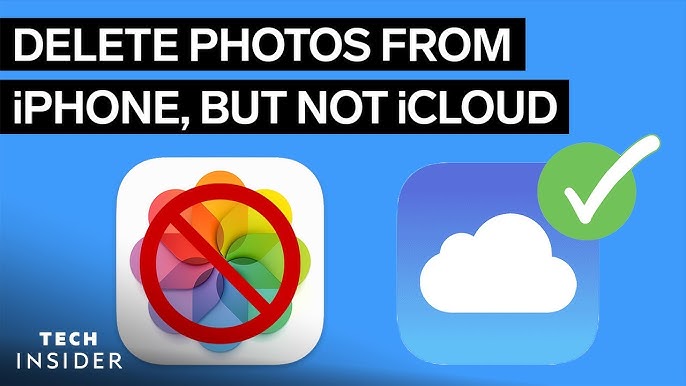
Keeping your iPhone storage clean without losing precious memories stored in iCloud can feel tricky. Many users wonder how to delete photos from iPhone but not iCloud safely. Thankfully, there are smart ways to free up space while keeping your images secure in iCloud. This detailed guide explains everything clearly, step by step.
Understanding the Difference Between iPhone Photos and iCloud Photos
Before deleting anything, it’s important to understand how Apple’s photo syncing works. When iCloud Photos is enabled, every picture you take automatically uploads to iCloud. If you delete a photo from your iPhone while syncing is on, it disappears from iCloud too. That’s why turning off syncing before deleting is key.
Why You Might Want to Delete Photos from iPhone Only
Your iPhone storage can fill up fast, especially with high-resolution photos and videos. Deleting photos from your device while keeping them in iCloud helps free up space. This way, you can still access your entire photo library online without using your iPhone’s internal storage.
Turn Off iCloud Photos Before Deleting
To start, open Settings on your iPhone. Tap your Apple ID, then go to iCloud → Photos. Turn off Sync this iPhone or iCloud Photos. Doing this stops your phone from syncing deletions with iCloud. Now, you can safely remove pictures from the device without affecting your cloud storage.
Delete Photos Manually from iPhone Storage
Once iCloud syncing is off, open the Photos app. Go to your Camera Roll, select the images you want to delete, and tap the trash icon. Those photos will disappear from your iPhone, but since syncing is disabled, they remain safe in your iCloud account.
Use iCloud.com to Confirm Your Photos Are Safe
To ensure your photos are still stored in iCloud, visit iCloud.com on any browser. Sign in with your Apple ID and open Photos. You should see all your pictures there, even the ones deleted from your iPhone. This step confirms that your memories are secure.
Optimize iPhone Storage for Smart Management
Another effective option is enabling Optimize iPhone Storage. Go to Settings → Photos and select this feature. It automatically stores smaller, space-saving versions of your photos on your iPhone while keeping full-resolution files in iCloud. This keeps your library accessible while saving space.
Use an External Backup Before Deleting Photos
If you prefer extra safety, back up your pictures before deleting them from your phone. You can use a computer, external hard drive, or third-party cloud storage. This provides an extra layer of protection, ensuring your photos are never lost even if something goes wrong during deletion.
Manage Photos Using iCloud Settings on a Mac or PC
If you have access to a computer, managing your iCloud Photos becomes easier. On a Mac, open the Photos app, go to Preferences → iCloud, and choose whether to keep originals or optimize storage. On a Windows PC, use iCloud for Windows to download or remove photos as needed.
Disable Photo Stream for Complete Control
Sometimes, photos stay on your device because of My Photo Stream. To stop this, open Settings → Photos, then turn off My Photo Stream. This ensures new photos aren’t automatically saved to your iPhone while you’re trying to manage space.
Check Recently Deleted Folder
After deleting photos, go to Photos → Albums → Recently Deleted. Emptying this folder permanently removes the images from your iPhone, freeing up additional storage space. Don’t worry — your photos in iCloud remain untouched.
Use Third-Party Tools for Smarter Cleanup
Several apps help automate photo management. Tools like Gemini Photos or Google Photos can identify duplicates, blurred shots, or large videos. Using such apps makes it easier to organize and clean your gallery efficiently without affecting iCloud data.
Regularly Monitor iCloud Storage
Although iCloud safely stores your photos, its space can fill up. Regularly check your iCloud storage usage in Settings. If space runs low, consider upgrading your iCloud plan or downloading older photos to another device or drive. Keeping your cloud organized ensures smooth syncing.
Common Mistakes to Avoid
Many users accidentally delete photos from both iPhone and iCloud because they forget to disable syncing. Avoid deleting images directly when iCloud Photos is still enabled. Always double-check your settings and confirm your photos are backed up before removing anything.
Conclusion
Learning how to delete photos from iPhone but not iCloud gives you full control over your storage. By turning off sync, optimizing storage, and backing up your images, you can protect your memories while keeping your device fast and clutter-free.
If you found this guide helpful, take a moment today to manage your photo library wisely — your iPhone will thank you for it!
FAQs
1. Will deleting photos from my iPhone delete them from iCloud?
Yes, if iCloud Photos is enabled. Disable it first to delete photos from your phone only.
2. How do I make sure my photos stay in iCloud after deleting them from iPhone?
Turn off iCloud Photos sync before deleting. Then, check iCloud.com to confirm they’re still stored.
3. Can I still access iCloud photos after deleting them from my phone?
Absolutely. You can view or download them anytime through iCloud.com or another Apple device.
4. What happens if I use Optimize iPhone Storage?
It saves space by keeping smaller photo versions on your device while storing originals in iCloud.
5. Is there a way to delete all iPhone photos quickly but keep them in iCloud?
Yes. First, disable iCloud Photos, then use the Select All option in the Photos app to remove them at once.